Online Store — Customer Guide
How to browse, buy, and manage your orders on the BNF Asia website.
Quick links
1 Browsing the store
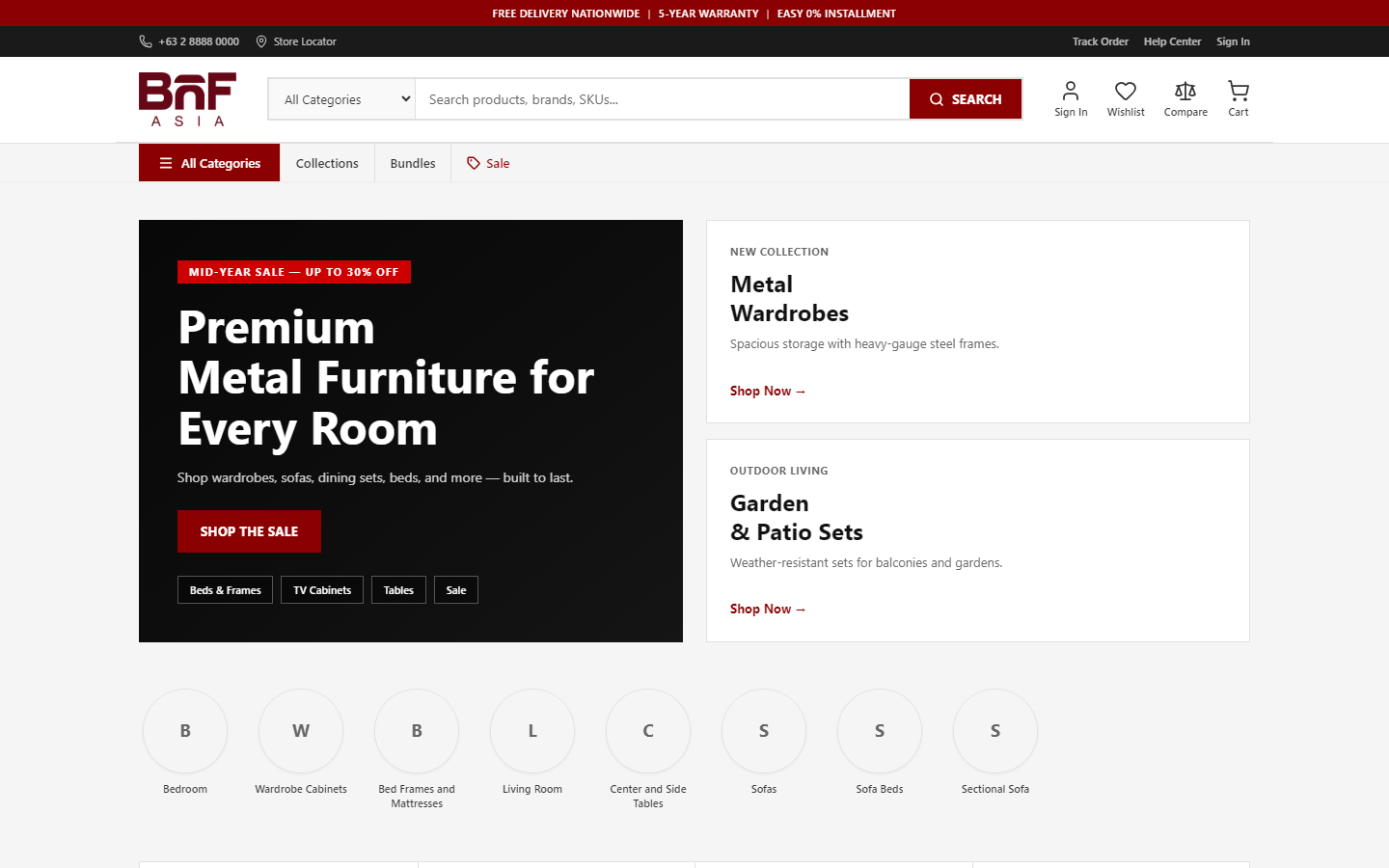
Product catalog — step by step
- Click All Categories or Products in the header.
- Use the sidebar to filter by category, deals, or price.
- Search by name or SKU in the header search bar.
- Click Clear all on filter chips to reset.
- Click a product to open its detail page.
Use the sidebar and filters on the products page:
- Category Bedroom, Cabinets…
- Deals Sale, New, Best
- Price Max budget
- Search Name or SKU
Filter chips appear above the grid when filters are active. Click Clear all to reset.
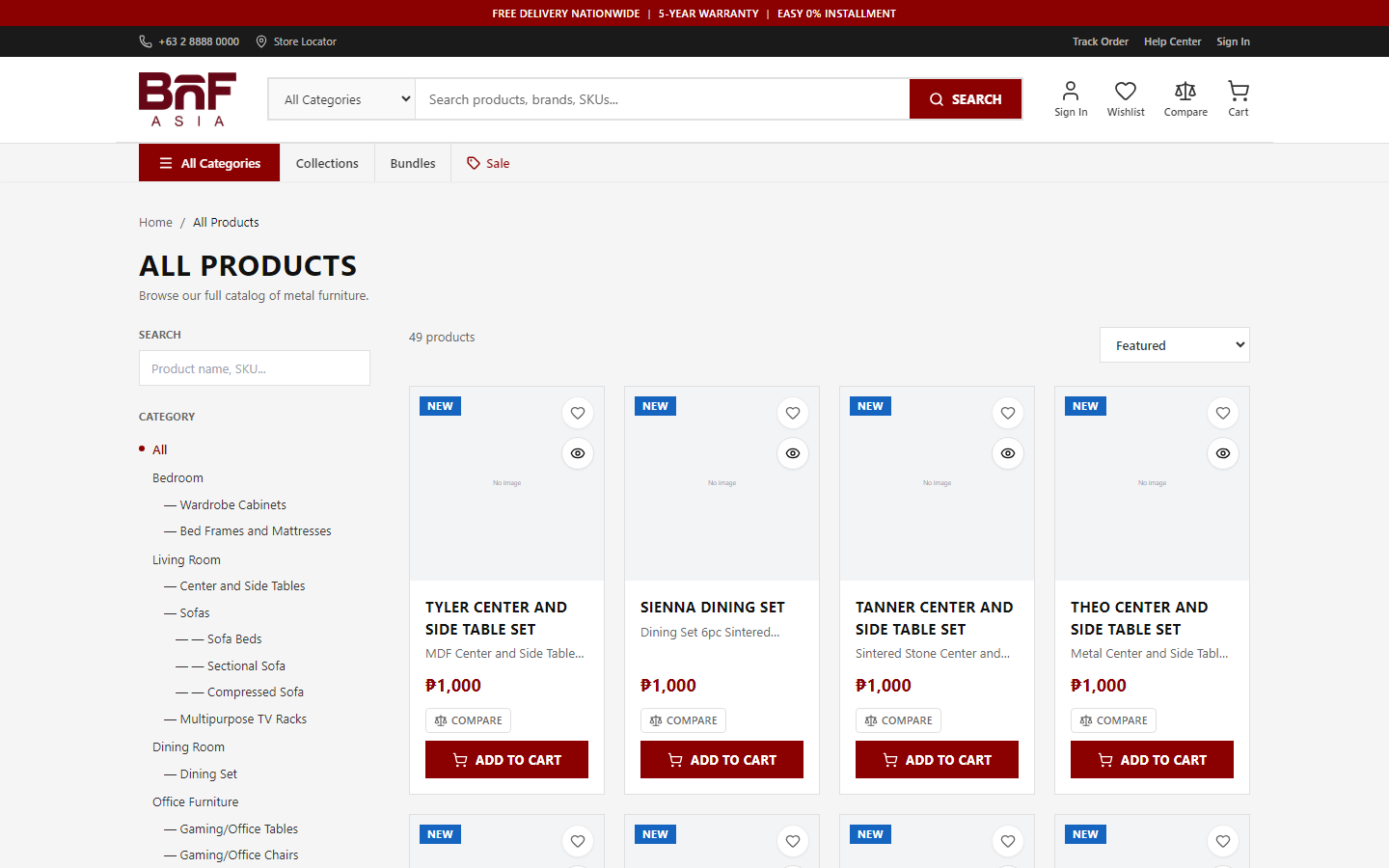
Product cards
- Open product Click image/name
- Quick view Eye icon
- Wishlist Heart icon
- Compare Up to 4 items
- Add to cart Default variant
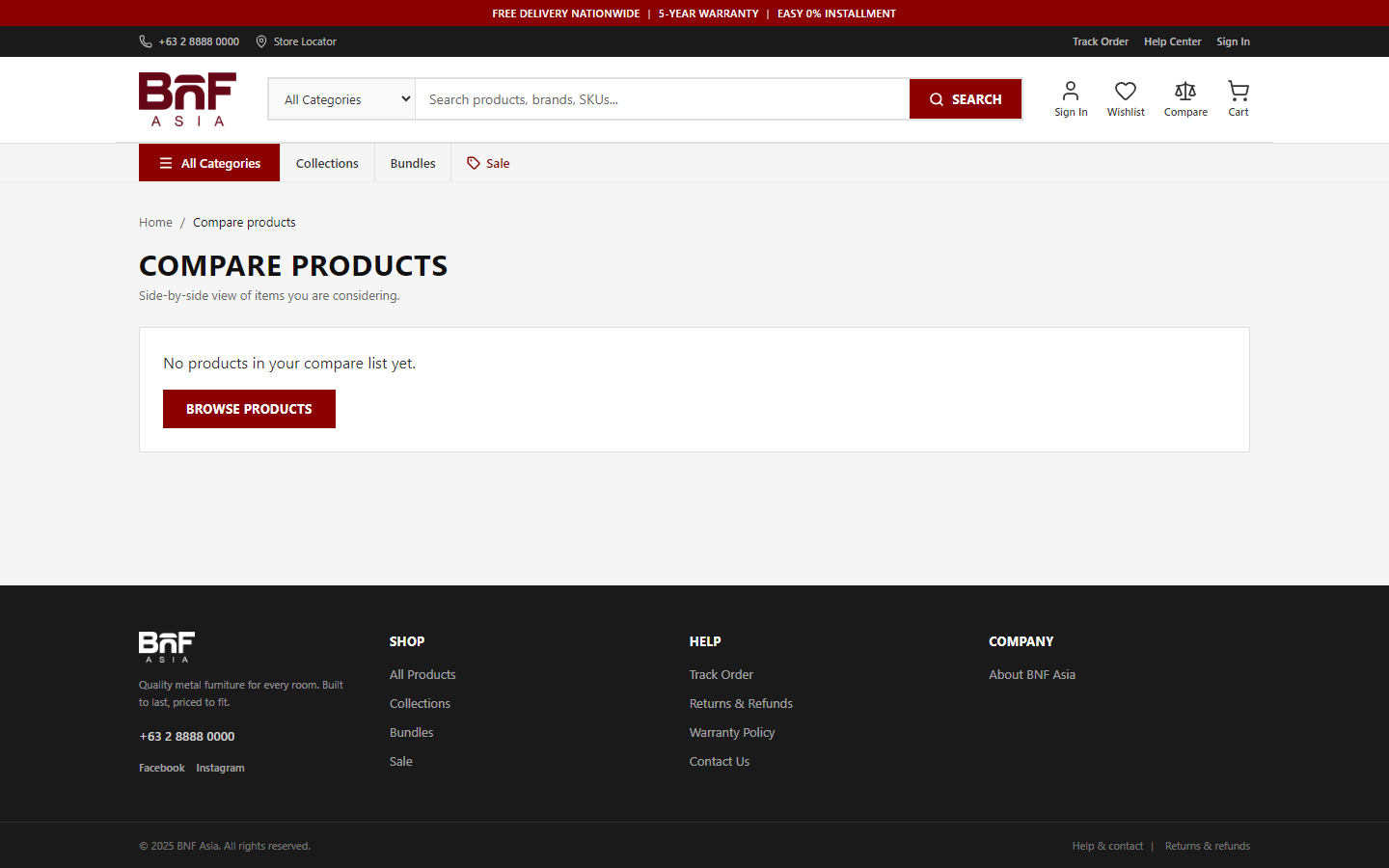
Compare products
Marked products appear on /compare with price and availability side by side.
Collections and bundles
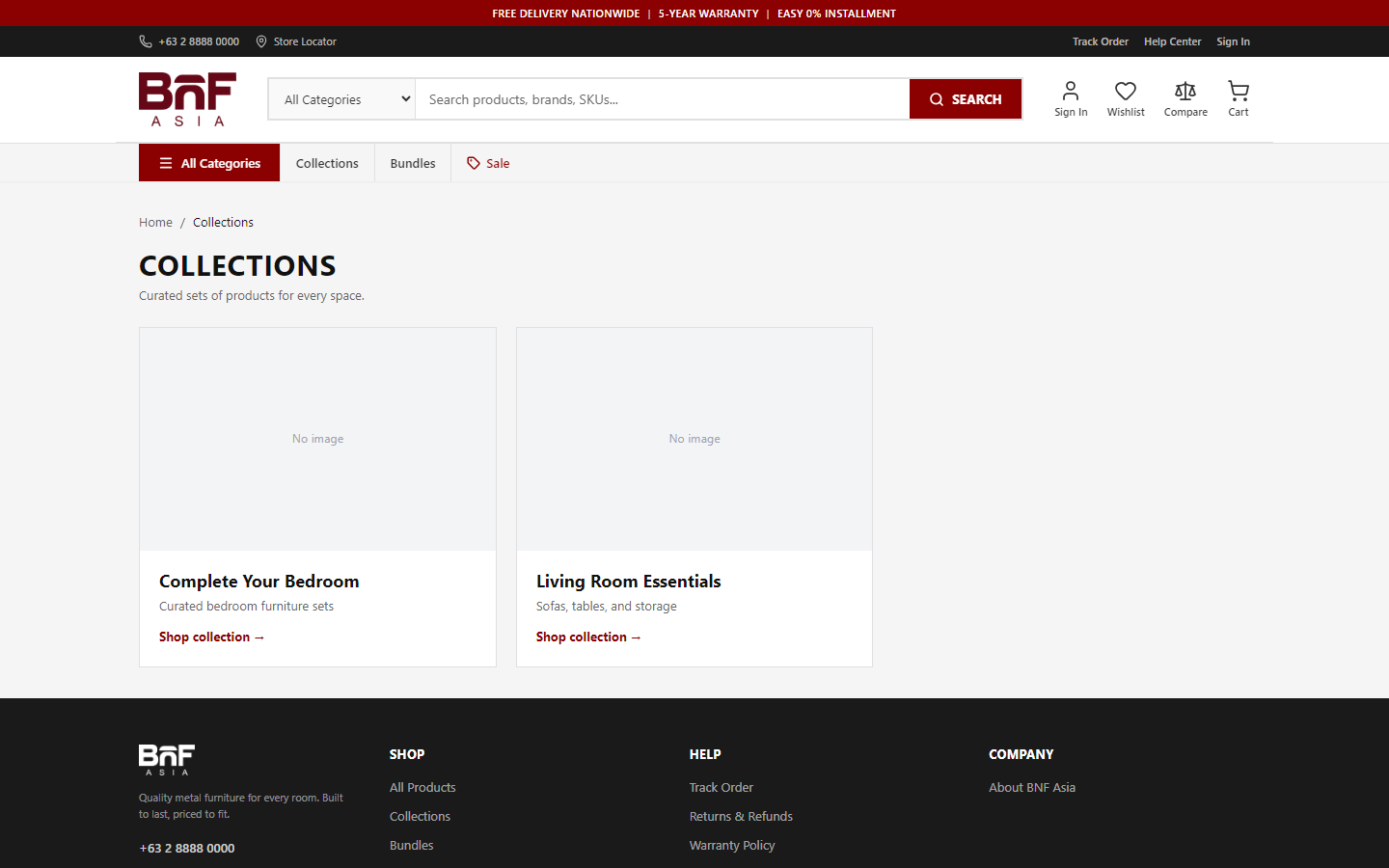
- Collections (
/collections) — Curated product groups - Bundles (
/bundles) — Multiple items; use Add all to cart
2 Product detail page
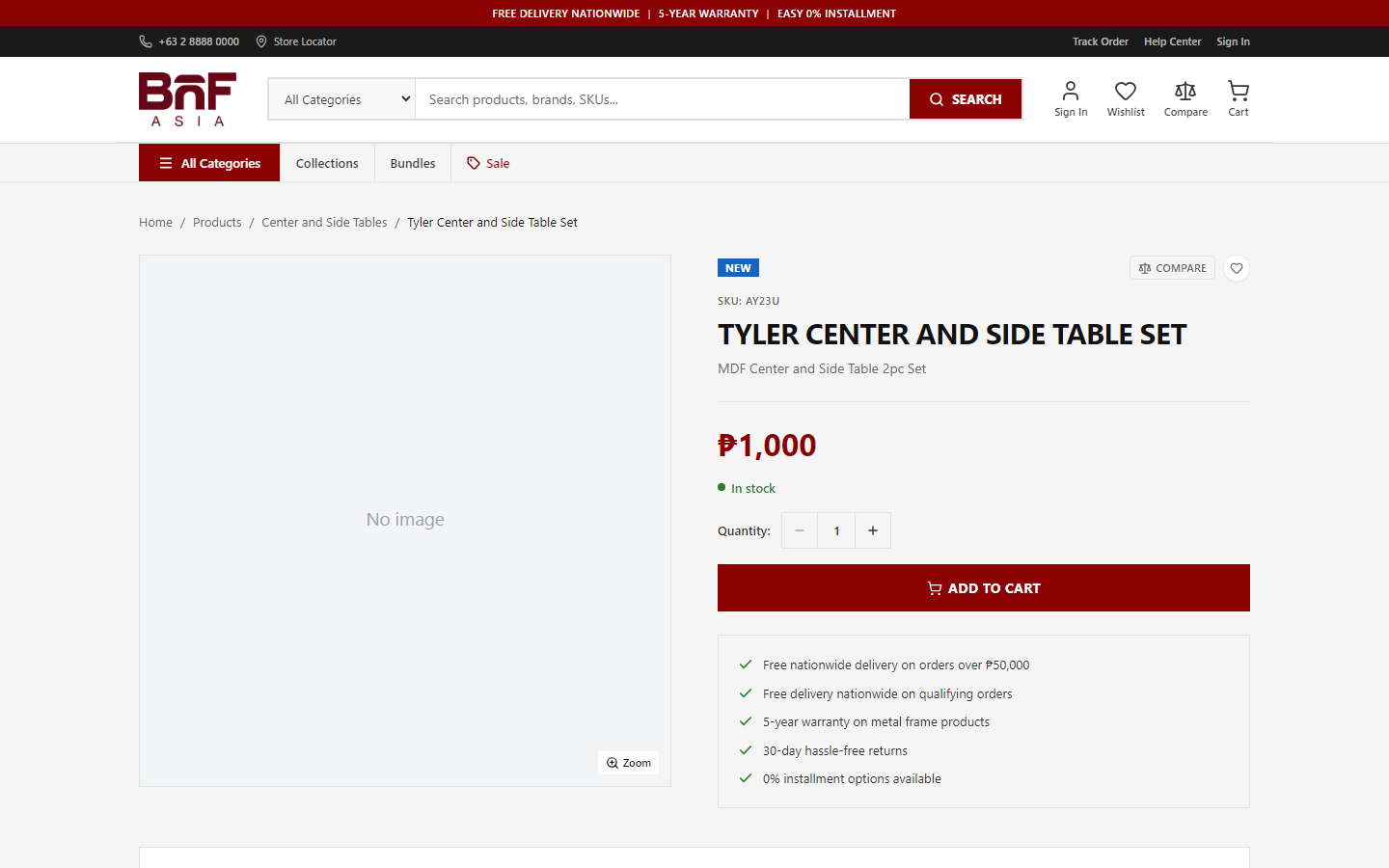
Images
Click the main image to zoom.
Variants
Select a finish or size (e.g. Walnut / Oak) before adding to cart. Price and stock update for your choice.
Stock messages
- In stock — Available to order
- Only X left — Low stock warning
- Out of stock — Use Notify me for a restock email
Notify me (back in stock)
When out of stock, enter your email on the product page and click Notify me.
Installation
Some items offer optional installation at checkout.
Trust messaging
Below Add to cart, trust bullets (warranty, delivery promises, etc.) may appear. Near the price, a free shipping note may show when the store has configured one.
Reviews
Read approved reviews. Verified buyer badge shows on purchase-verified reviews.
- Enter name, rating (1–5), and comment
- Optionally add up to three photo URLs
- Submit — appears after store approval
Recently viewed
Items you opened earlier appear at the bottom of the product page.
3 Cart and wishlist
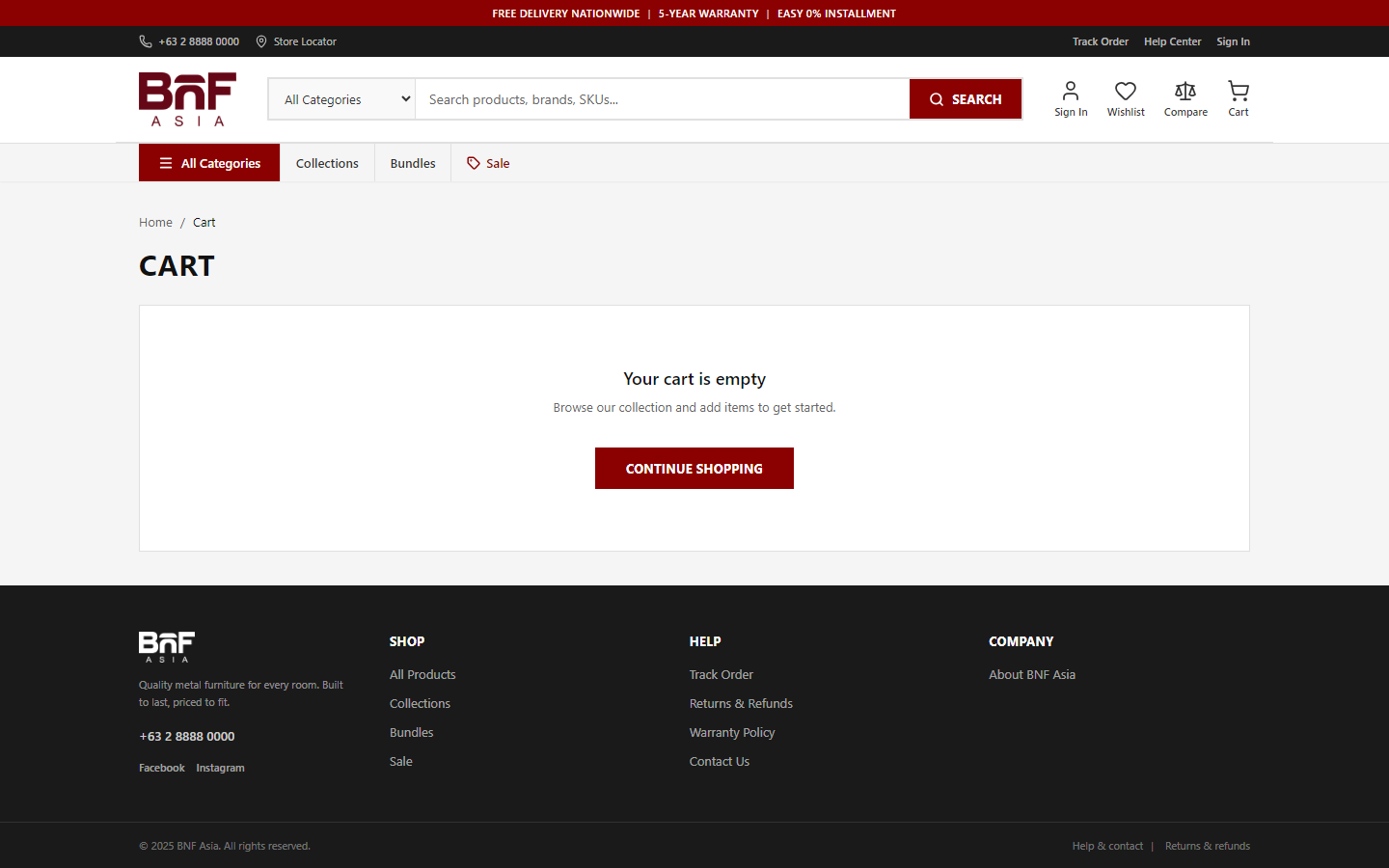
Full cart
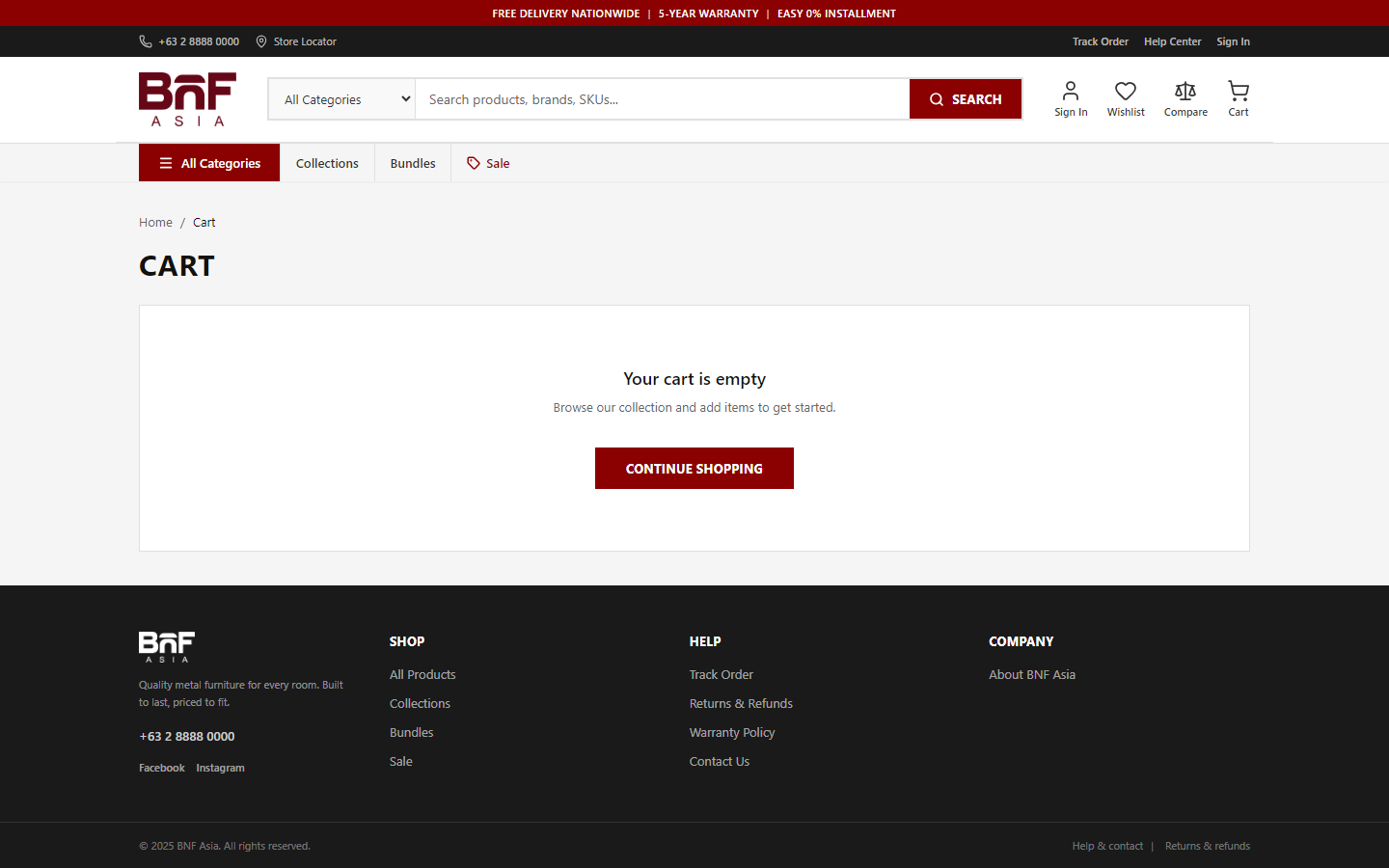
Review items at /cart. Signed-in customers can sync the cart to their account.
Wishlist
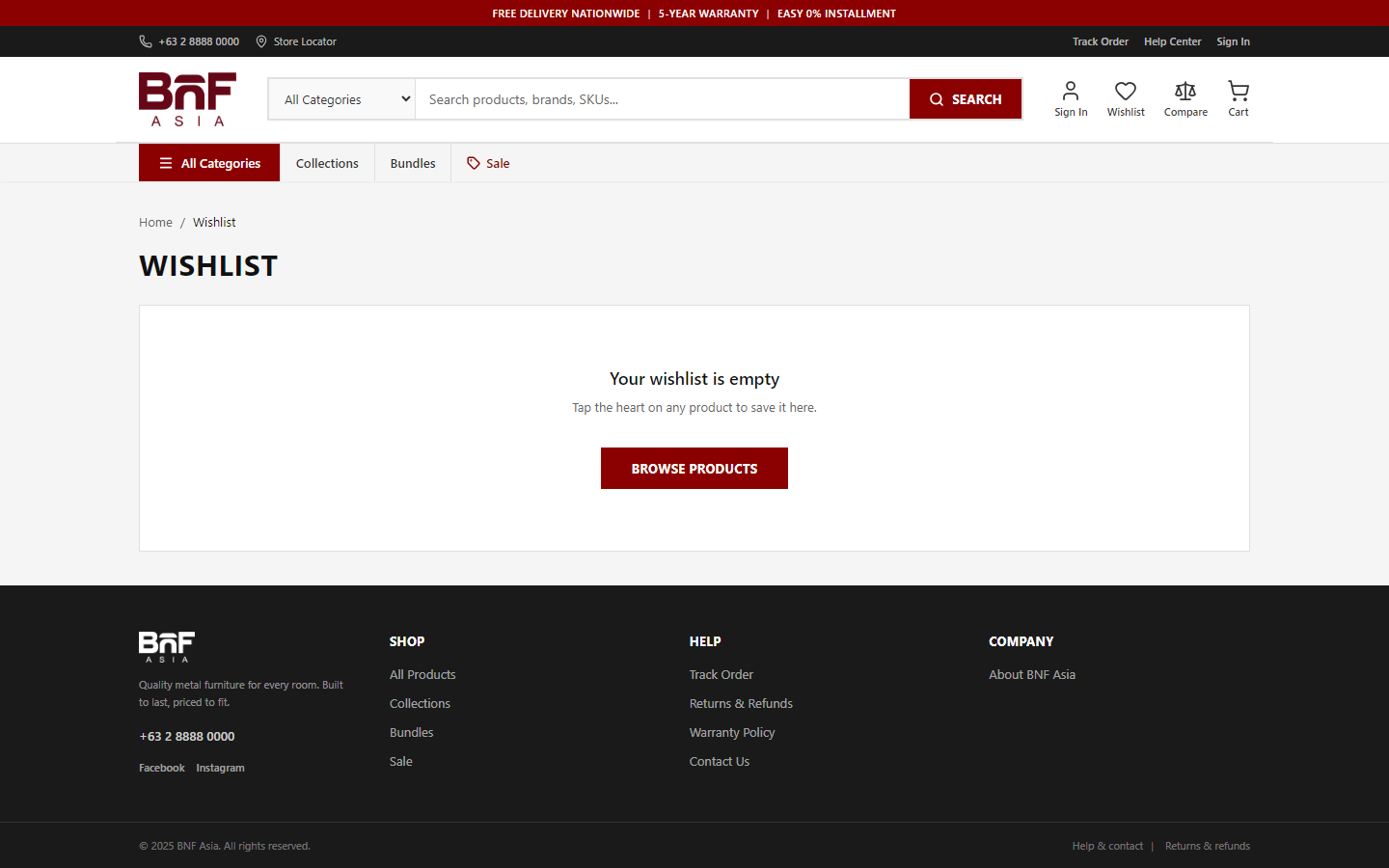
Heart icon on products. View at /wishlist.
Compare
4 Checkout
One page with collapsible sections: Contact, Fulfillment, Payment, and Order summary.
Contact
- Email (required) — Confirmations and tracking
- Phone (optional)
Fulfillment
Home delivery
- Pick a saved address or enter a new one
- Country, street, city, province (PH) or city + postal code (international)
- Choose a shipping option if multiple rates appear
- Review totals — payment methods update by country
Store pickup
Select a pickup location. Shipping is free.
Order notes
Delivery instructions when enabled by the store.
Payment methods
Promo codes
Enter code → Apply → discount appears in summary if valid.
Test mode
5 After you order
Order confirmation
- Order number — save this
- Items, totals, payment method
- Create account option for guest buyers
Confirmation email
Includes order details and a PDF invoice attachment when email is configured.
Track order
At /track-order, enter order number and checkout email for status, timeline, and tracking.
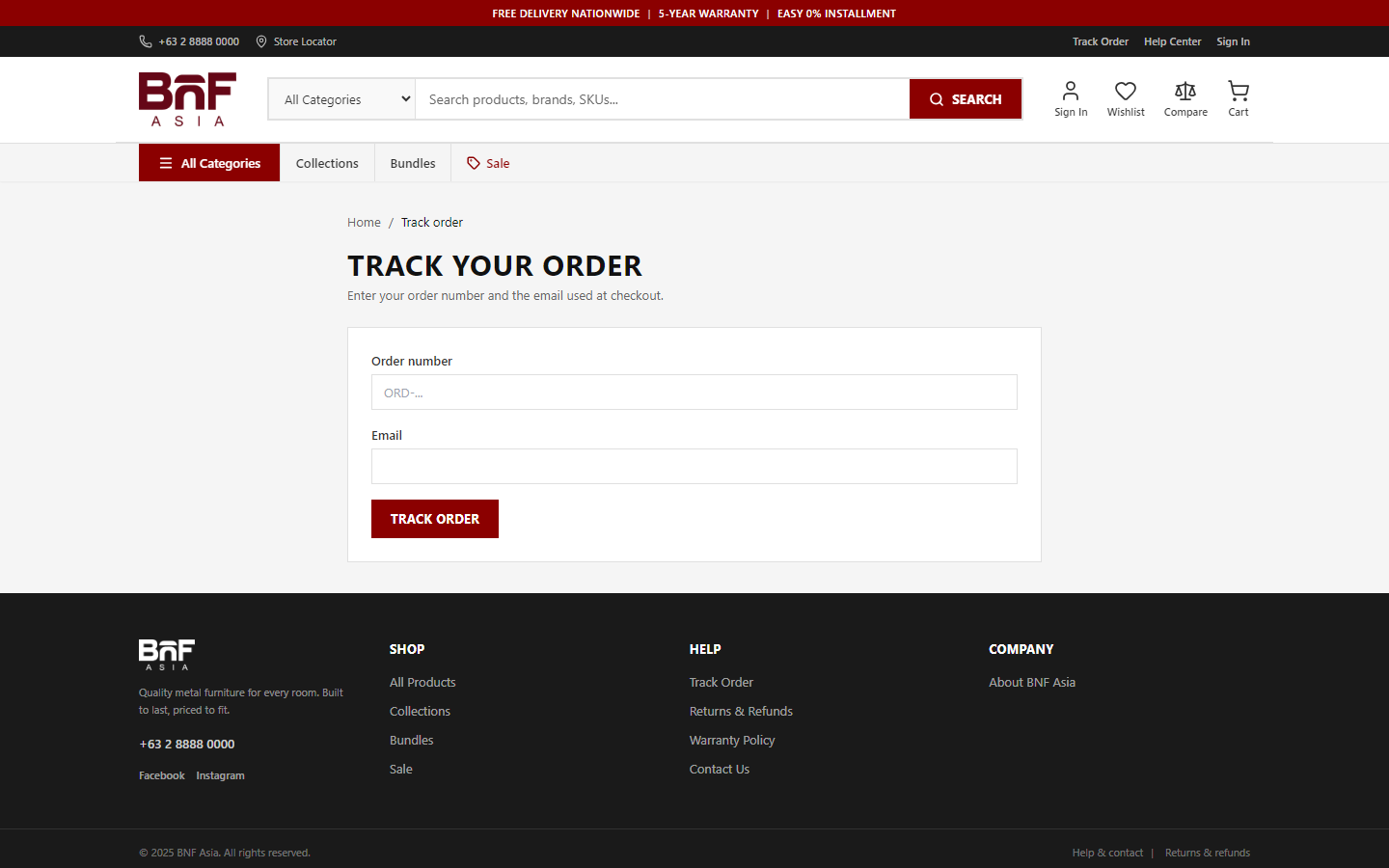
/track-order. No account required.6 Your account
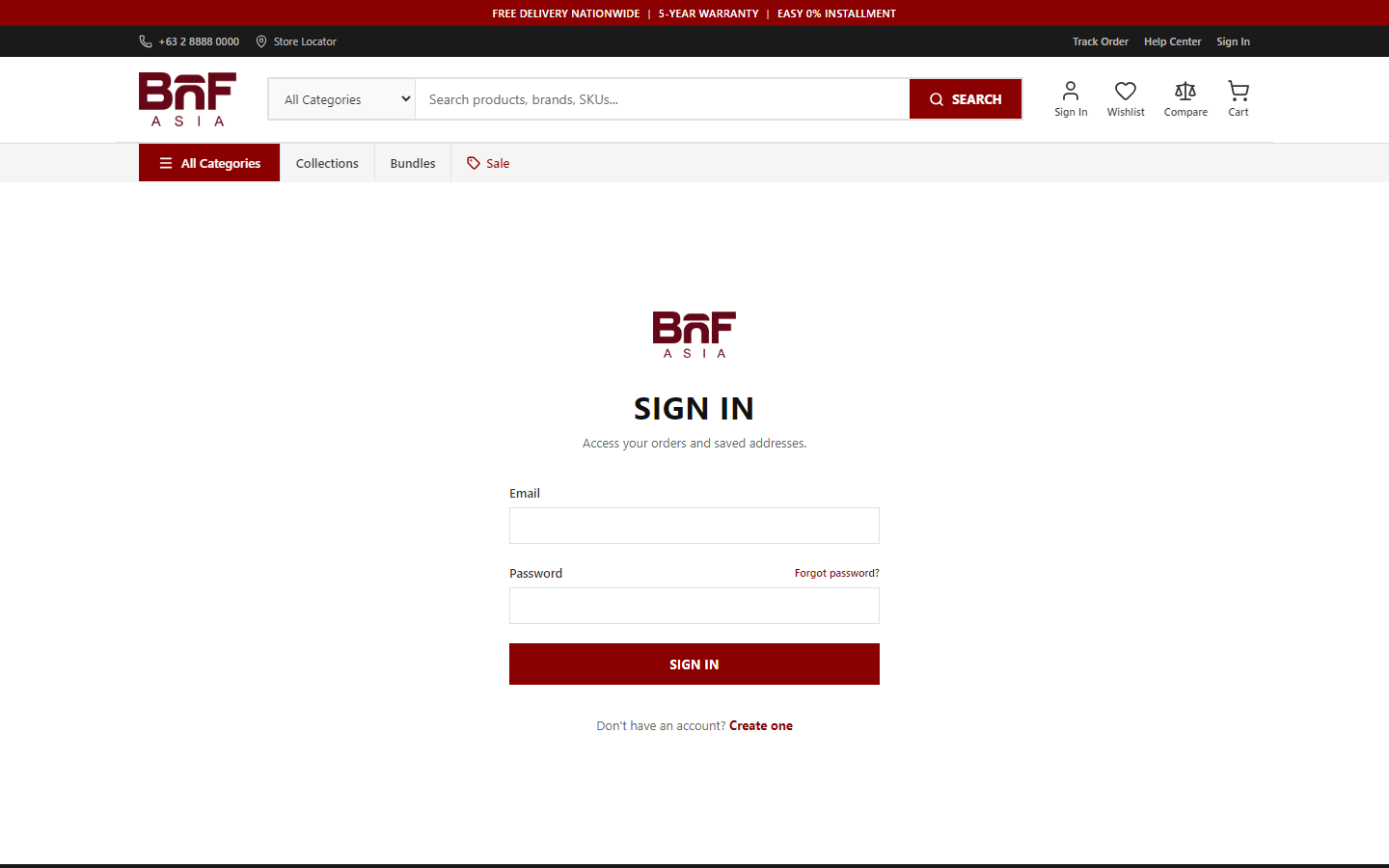
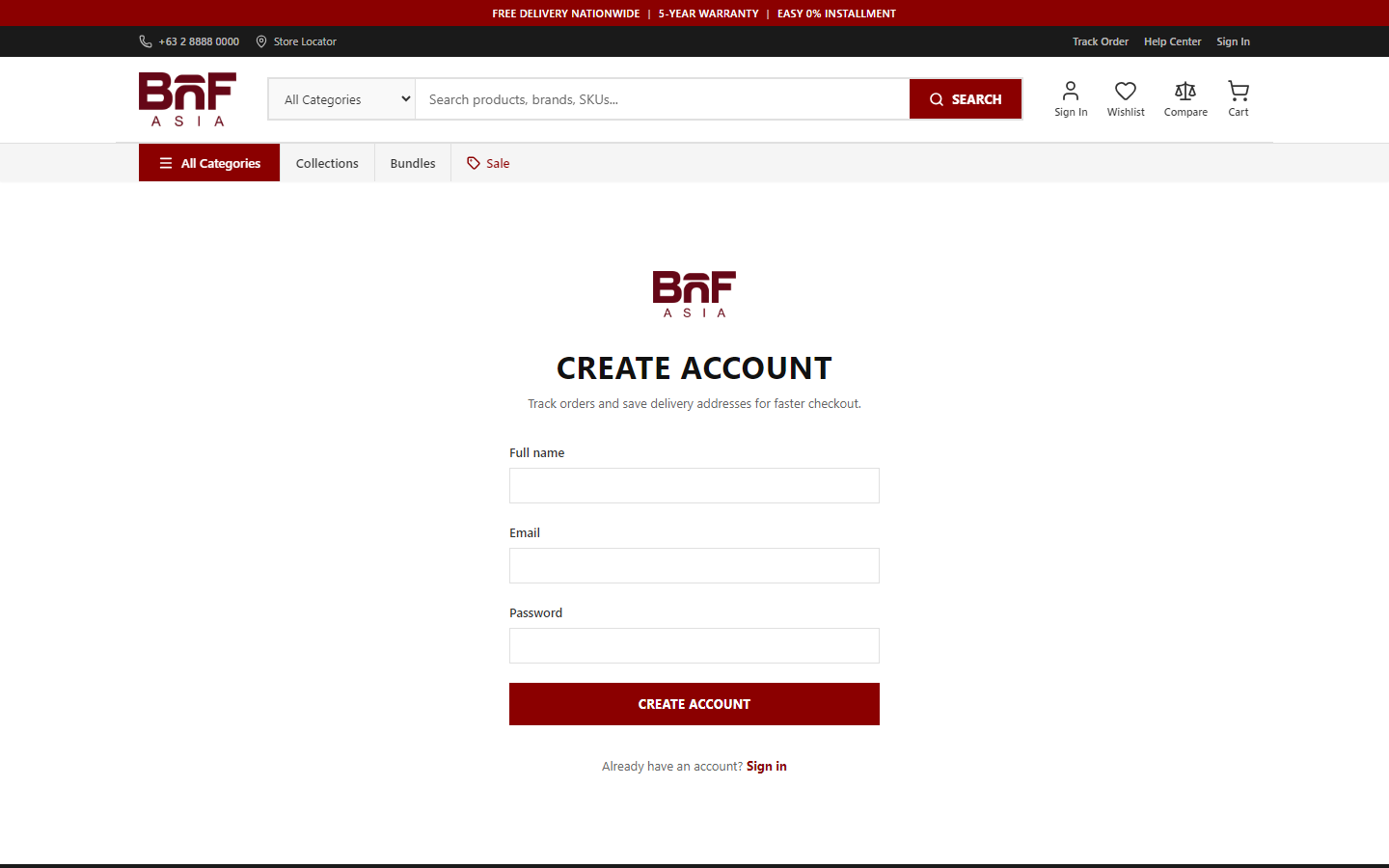
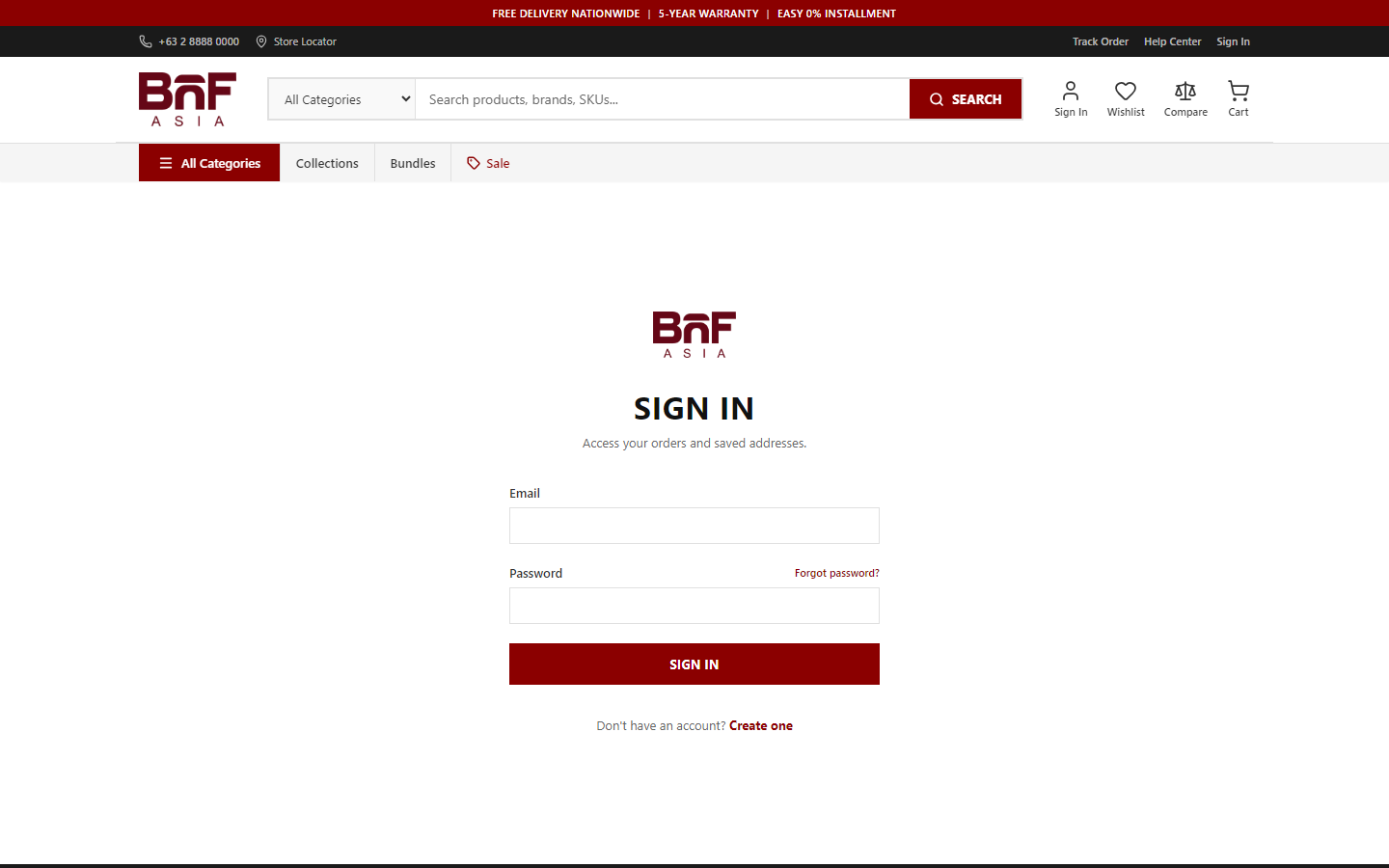
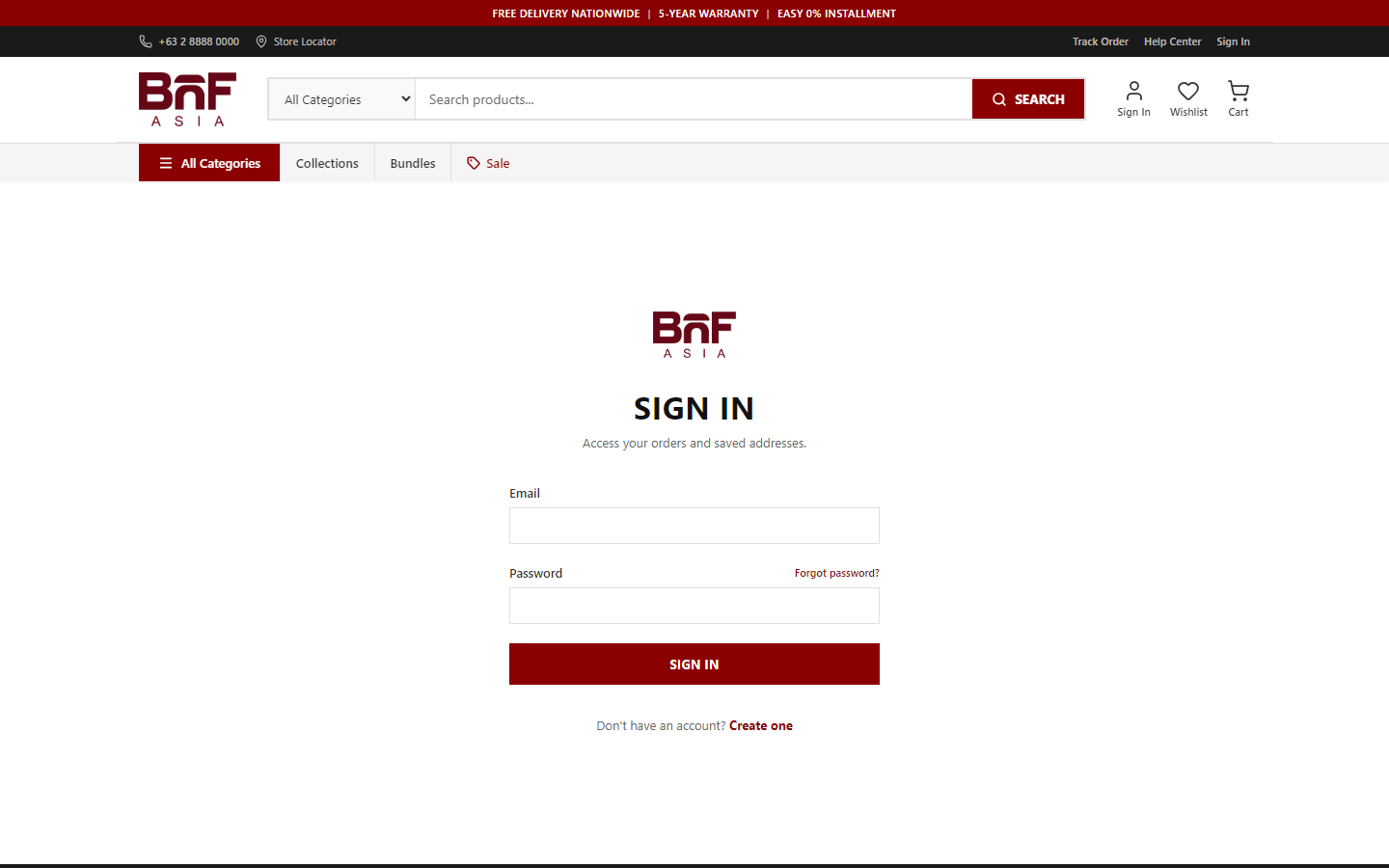
- Click Account → Register or Login.
- Enter email and password; use Forgot password if needed.
- Open Account for profile and saved addresses; use Order history for past orders.
- Profile Password, emails
- Addresses Save & default
- Order history Invoices, cancel, return
- Order chat Support-assisted
Order actions
- Buy again — Re-add items to cart
- Download PDF invoice
- View invoice — Printable on-screen version
- Request cancellation / Request return — Submit when allowed for your order status
7 Policies and help
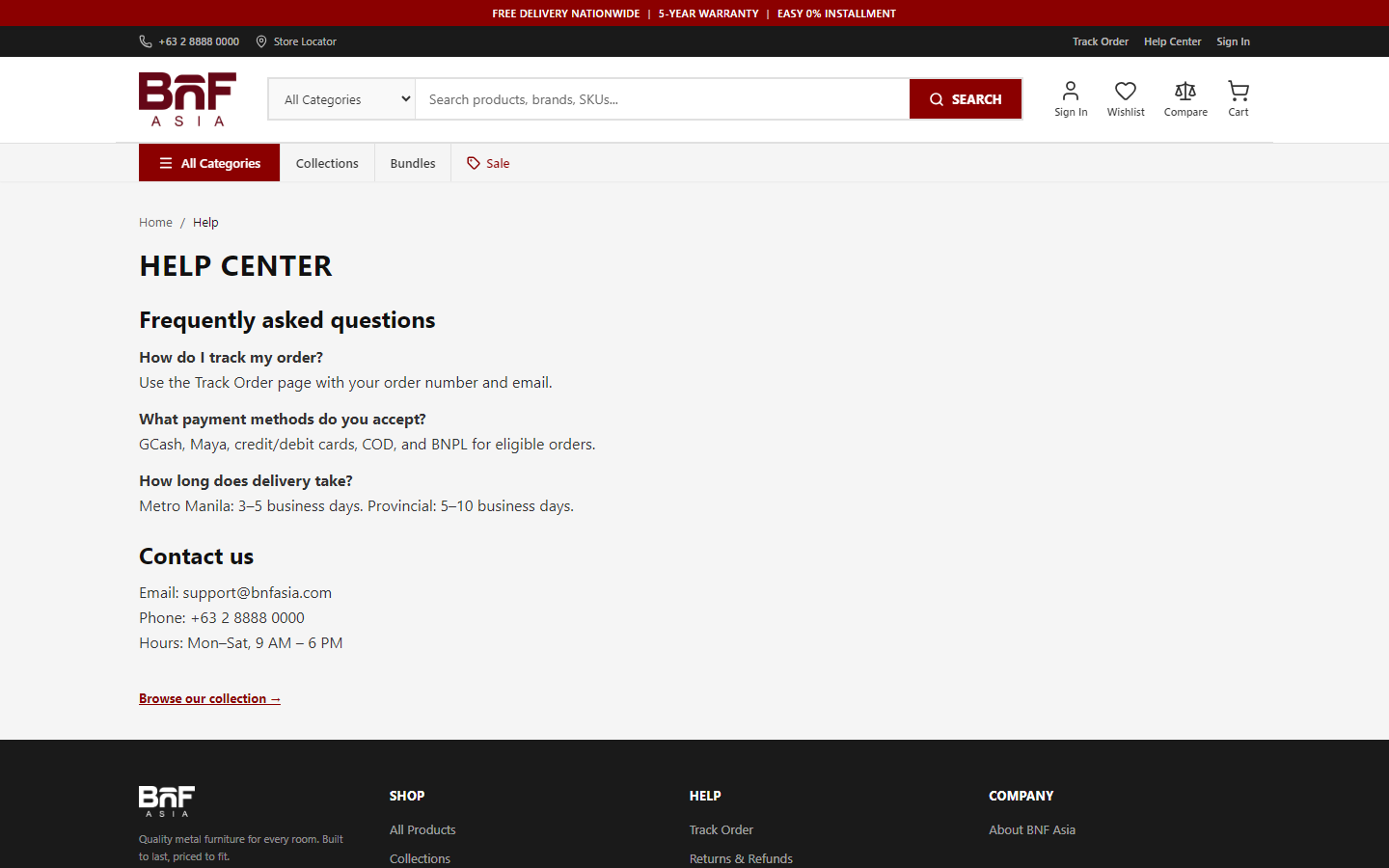
Footer links: About, Help / Contact, Warranty, Returns & Refunds, Store locator.
8 Tips & FAQ
- Do I need an account?
- Guest checkout often works. An account gives order history, saved addresses, and wishlist sync.
- Why was my promo code rejected?
- Check minimum order, dates, and usage limits.
- Why can't I pay with GCash?
- PayMongo must be enabled. Only methods shown at checkout are available.
- How do I cancel an order?
- Open the order in your account and submit a cancel request if offered.
- How do I get an invoice?
- Account → order → Download PDF, or check your confirmation email.
- I forgot my password
- Use Forgot password on the login page.
9 Getting started checklist
New to the store? Work through these steps:
First purchase
- Browse products and use filters or search
- Open a product, select a variant if needed, add to cart
- Complete checkout (guest or signed in)
- Save your order number and track delivery
With an account
- Register and sign in
- Save a default delivery address
- View order history and download invoices
- Use wishlist and buy again for repeat orders
Need help?
Use Track order first, then the Help page or your confirmation email for support.